How to convert your PDF menu into a digital menu (and why a PDF behind a QR code isn't one)
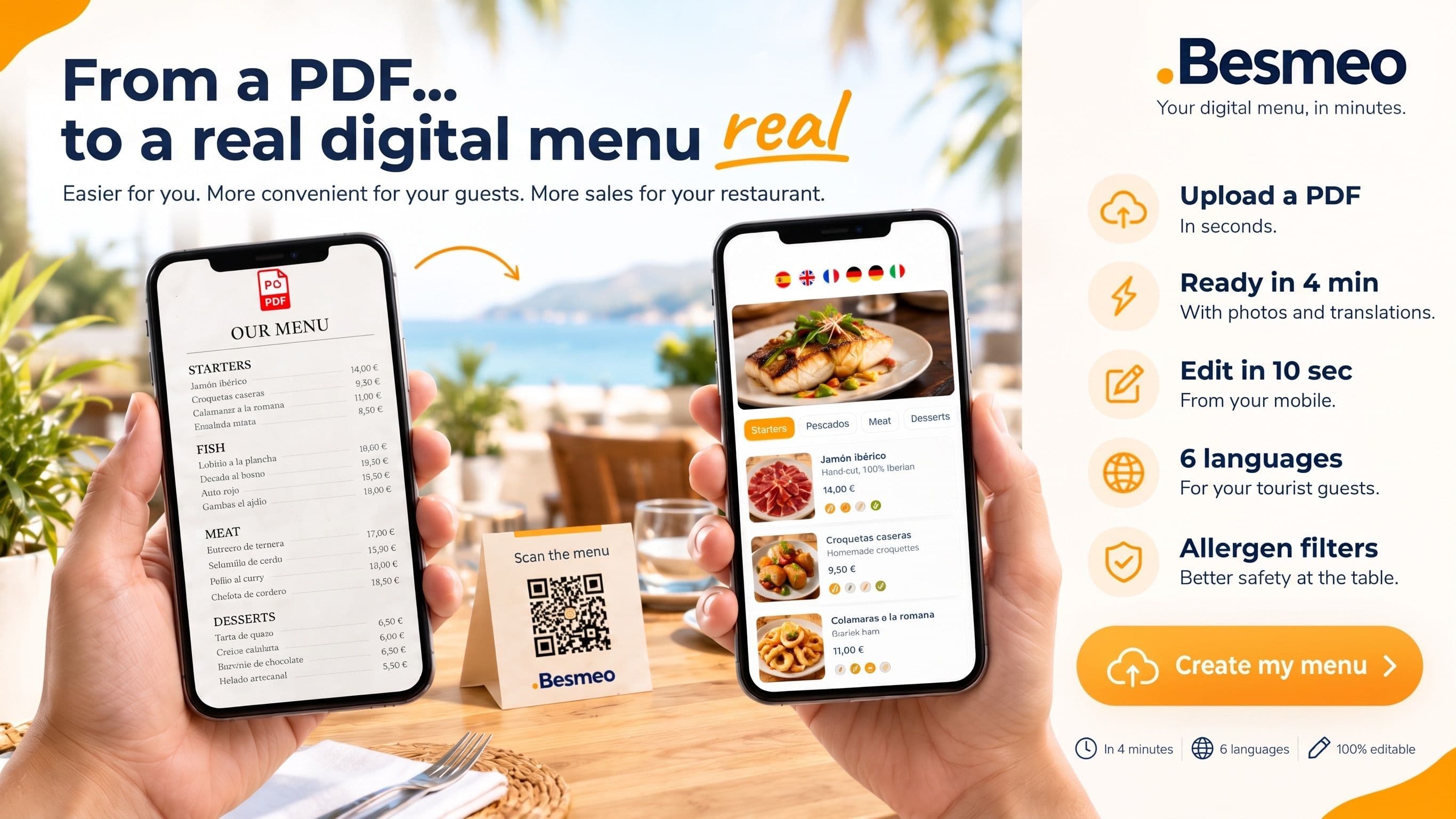
Slug: `` Meta description (149 characters): Short description (75 characters): Turn your PDF menu into a mobile digital menu without typing a single dish.
How to convert your PDF menu into a digital menu (and why a PDF behind a QR code isn't one)
To convert a PDF menu into a digital menu, you need to extract the text and prices from the static document and transfer them into an interactive, mobile-friendly web format. You can do this by manually typing dishes into a menu builder or by using automated tools that read the PDF and build the catalog in seconds.
Why is my PDF menu with a QR code no longer cutting it?
Back in 2020, you did what you had to do. You were told physical menus were off the table, so you called your designer or a tech-savvy nephew, uploaded your classic print PDF to the internet, and stuck QR stickers on every table. You got through it fast, followed the rules, and kept your doors open. Nobody can fault you for that—you had enough on your plate just getting through service.
The problem is that your PDF was designed to be printed on an A4 sheet or a cardstock folder, not read on a six-inch screen under the glaring sun on a patio.
When a guest sits at your table today and scans a PDF menu with a QR code, you force them into finger gymnastics. They have to pinch the screen, zoom in to see if the calamari is 12 or 14 euros, drag the document left to right, and scroll all the way back up because they lost their place.
On top of that, PDFs are heavy files. If your dining room has dead zones—like an indoor space with thick stone walls or a basement—or your terrace is packed in August and the mobile network is congested, the file takes forever to load. The customer stares at a blank screen, gets impatient, and ends up waving down a waiter to ask what you have.
It doesn't make your daily life any easier, either. Every time olive oil prices jump, the seasonal fish changes, or you run out of a dessert on a busy Sunday afternoon, the PDF becomes a headache. You can't just cross out a dish from your phone in ten seconds. You have to open a computer, find the original file, edit it (or ask someone to edit it for you), export it again, upload it, and pray the QR link hasn't changed. Because you've already been on your feet for thirteen hours, you don't do it. And the result is your server apologizing at every table: "Sorry, we're out of that today" or "Apologies, the price on the website is the old one."
If you also work in a tourist area, a PDF is a brick wall. A German, British, or French tourist can't tap a button to switch languages on a locked file. They don't understand local specialties, they don't see a photo to clear up their doubts, and they end up ordering the only thing they recognize: a mixed salad or fries. You lose average ticket value without even realizing it, simply because your menu isn't helping them order. If you want to better understand how modern dining room tech works, take a look at our guide on [ENLACE: qué es un menú QR].
What is the real difference between a PDF and a true digital menu?
Plenty of people still call anything that pops up on a phone after scanning a code a "digital menu." But for the customer sitting in your chair and for you working behind the bar, they are two completely different worlds.
Here is the difference between a PDF and a digital menu explained in plain English, focused on what actually happens during a real shift:
| Daily Reality | PDF Menu with QR Code | Interactive Digital Menu (Web) | | :--- | :--- | :--- | | Reading on a phone | Awkward. Forces guests to pinch-and-zoom and scroll sideways because it keeps the paper layout. | Natural. Text and buttons automatically adapt to any phone screen width. Guests only scroll up and down. | | Loading speed | Slow. The phone has to download the entire file (often several megabytes) before showing the first dish. | Instant. Loads like a lightweight webpage; guests see the starters one second after scanning. | | Languages for tourists | Fixed. You either cram four tiny translated lines under every dish on paper, or print four different QR codes. | Automatic. The guest taps a flag at the top and the entire menu switches to their language instantly. | | Food photography | Nearly impossible. Adding photos to the design makes the file so massive it won't open on mobile data. | Built-in. Every dish can feature an optimized photo that looks sharp without slowing down the load time. | | Price or dish updates | Slow and painful. Requires editing the design on a computer, saving a new PDF, uploading it, and checking the QR link. | Done in seconds. Log in from your own phone, change a 12 to a 13 or toggle off a sold-out dish, and it updates live. | | Allergen filtering | Static. Tiny icons next to the text that guests have to decode using a legend at the bottom of the page. | Interactive. Clear icons per dish or filters so celiac or allergic guests can immediately see what is safe to eat. | | Maintenance cost | Your own free time or designer invoices every time you change the seasonal menu or update your rates. | Fixed software fee (or free on basic plans), giving you total autonomy to make a thousand edits at zero extra cost. |
Which platforms automatically convert a PDF menu into a web menu?
When you tell a restaurant owner they need to swap their PDF for a web menu, their first answer is always the same: "I don't have three free afternoons to sit down and type eighty dishes, descriptions, and prices one by one into a software program." And they are completely right. Suppliers, staff rotas, and cashing up at night already take up enough of your life.
Until recently, digitizing a menu meant sitting in front of a laptop with your printed menu next to you, manually filling out text boxes in a dashboard. Thankfully, today there are platforms that use smart scanning to do that grunt work for you.
Instead of starting with a blank form, you give them your current PDF file—or even a quick phone photo of your laminated bar menu—and the software reads the sections, detects which text is the dish name, which part is the ingredient description, and which number is the price. Within a couple of minutes, it dumps all that information into a clean structure of buttons and categories ready to be viewed vertically on a phone.
Within this category, some tools only extract the raw text to save you from typing, while others built specifically for hospitality go a step further: besides pulling your list of dishes and prices ready to publish, they translate descriptions for international guests and illustrate the catalog so you aren't left with a plain screen full of text.
If your priority is not wasting half an hour configuring screens, picking an option with automatic extraction is the only realistic path. You can check out the general process step by step in our article on [ENLACE: cómo crear una carta digital].
Which tool is best for turning my PDF menu into a mobile QR menu?
Not every bar or restaurant needs the same setup. A beachfront restaurant welcoming British, French, and German tourists every day has very different urgencies than an industrial estate café serving daily set menus to locals, or a high-volume venue that wants guests to order and pay from their chairs without calling a server.
So you don't waste time testing ten different websites, we have compared 5 real options used in hospitality today to create a mobile QR menu, ranging from design workarounds to full dining room systems: Besmeo, Canva, Recafy, nowEat, and Avocaty (you can also check out other options in our breakdown of [ENLACE: alternativas a Menubly]).
1. Besmeo
Built for the restaurant owner who has neither the time nor the patience to learn how to use software. You upload your current PDF (or snap a photo of your paper menu with your phone) and the tool does four things on its own: it extracts all your dishes and prices organized by section, generates an appetizing photo for every dish using artificial intelligence, translates the menu into 5 languages, and gives you a permanent QR code that never expires.
If you run out of sirloin on a Tuesday mid-service or need to raise starter prices by fifty cents, you open your phone, change it in two taps, and it's live. It comes with a 14-day free trial that doesn't ask for a credit card.
- Who it is NOT for: If all you want is a free link for life that keeps opening your old static PDF as-is, or if you need a complex system wired into your POS so guests can place orders and pay by card directly at the table without a waiter.
- An important note on AI-generated photos: While Besmeo automatically generates images so your menu looks mouth-watering from day one without hiring a photographer, the food on screen should never mislead your guests. It is essential to review the generated photos one by one before publishing your menu to make sure they are faithful to your real dish and plating style, or swap them out with a photo taken on your own phone if you make a very specific house recipe.
2. Canva
Canva isn't hospitality software; it's the most popular graphic design tool in the world. Many bars use it because it's free to start and has thousands of nice templates. You can import your PDF, tweak the text by dragging boxes around with your mouse, and instead of downloading it as a PDF again, hit the option to publish it as a "single-page website" and generate a QR code.
- The practical catch: Even though the link is a webpage, it still behaves like a rigid poster. It has no category buttons to jump from starters to desserts, it doesn't translate dishes when a tourist walks in, it has no allergen filters, and changing a price from your phone during a busy shift is a nightmare because text boxes easily get knocked out of alignment.
3. Recafy
A platform focused on digitizing both your QR menu and your restaurant's wider online presence (website plus takeaway or delivery orders). It lets you organize dishes into categories with photos, manage mandatory allergens, and display the menu in multiple languages with a clean, mobile-adapted layout.
- What to keep in mind: It is a very solid tool if you also want to revamp your venue's website or manage commission-free delivery orders, but it takes more initial setup time to configure your entire catalog and business settings.
4. nowEat
Another hospitality solution centered on digital menus and table self-ordering. Its main strength goes beyond just reading the menu: it allows customers to select what they want to eat on their phone and send the order straight to the bar or kitchen, speeding up table turnover in busy venues that are short-staffed.
- What to keep in mind: If you run traditional table service—where the guest reads the menu on their phone, but the waiter comes over to take the order, recommend the fresh fish of the day, and bring the bill—paying for and configuring order routing and payment gateways is overkill.
5. Avocaty
A well-known app in Spain for building QR digital menus straight from your phone. It focuses on easy mobile editing, letting you tag allergens, upload photos of your dishes, and enable automatic translations depending on the plan you pick.
- What to keep in mind: The standard workflow starts with building your catalog inside the app by typing in your categories and dishes. If you have a long PDF menu, you will need to set aside time to manually enter the information and photograph your dishes yourself.
Comparison Table: 5 options to turn your PDF menu into a digital menu
| Feature | Besmeo | Canva | Recafy | nowEat | Avocaty | | :--- | :--- | :--- | :--- | :--- | :--- | | Price | [PRECIO BESMEO] (14-day free trial, no card required) | Free (paid Pro version: check their website) | Check their website | Check their website | Check their website (offers a basic free tier) | | Automatically extracts dishes from PDF? | Yes. Upload the PDF or snap a photo and it builds the whole menu on its own. | No. Imports the design as text boxes, not as an interactive dish catalog. | No native instant extraction (built via dashboard or support). | No automatic self-service extraction (manual or assisted setup). | No. You have to type in dishes and prices manually. | | Dish photos | Included. Generates AI photos for each dish or lets you upload your own. | Manual. You have to take them, upload them, and fit them into the design layout. | Manual. You upload the photos you already have of your dishes. | Manual. You upload your own food photography to the catalog. | Manual. You take and upload the photos yourself from your phone. | | Language translation | Yes, automatically translates the menu into 5 languages. | No. You have to duplicate pages and translate text box by text box. | Yes, multi-language available depending on your plan. | Yes, includes multi-language support. | Yes, available on paid plans. | | Allergen management | Yes, quick assignment of the 14 mandatory allergens per dish. | No. You have to paste tiny icon graphics one by one next to each line. | Yes, built-in icon and filtering system. | Yes, dish cards with allergen information. | Yes, built-in allergen selector for every dish. | | Fast mobile editing | Yes, built for changing prices or hiding sold-out dishes in seconds. | Very clunky. Moving design text with your thumb usually messes up the page layout. | Yes, via its responsive web dashboard. | Yes, through its admin control panel. | Yes, features an app designed for phone management. | | Best suited for... | Busy owners in tourist areas who want to upload their PDF and get a menu with photos and languages in 2 minutes. | Anyone designing print posters who wants a zero-cost visual workaround without interactive web features. | Restaurants that want a QR menu alongside a new website and a takeaway ordering system. | High-turnover venues or large patios that want guests to order and pay from their phones. | Bars with short menus whose owners prefer typing in their dishes by hand on their phone bit by bit. |
How do I turn my PDF menu into a digital menu step by step?
You don't need to book a day off or call an IT guy to make the switch. If you follow this order, you can have your new menu up and running in the downtime between lunch and dinner service:
- Clean up on paper before you start. Grab your current PDF or a printed menu and a pen. Cross out dishes the kitchen no longer makes, write down the actual prices you are charging on your POS today, and check if any new specials are missing that your staff are currently reciting from memory.
- Pick a tool and upload the file. If you use an automated system like Besmeo, log in from your phone or computer, select your saved PDF file (or take a clear, straight photo of your physical menu on a well-lit table), and upload it.
- Review the extracted sections and prices. Even though the software reads the document on its own, give it a quick top-to-bottom scan. Make sure "Starters", "Mains", "Seafood", and "Desserts" are in the order you want guests to see them, and check that no decimals shifted out of place.
- Verify the photos dish by dish. If the platform generated photos to illustrate your menu, look at them with a chef's eye. If your house potato salad comes topped with tuna belly and breadsticks, the photo needs to look like that. If an automated image doesn't accurately represent your recipe, swap it on the spot by snapping a real photo the next time the dish leaves the pass, or turn the photo off for that specific item.
- Tag the mandatory allergens. Open your dishes and check the relevant boxes (gluten, dairy, nuts, crustaceans...). Doing this with simple checkboxes takes five minutes now and saves you major scares for the rest of the year.
- Check the translations. If the tool translated your menu into English, French, or German, take a quick look at traditional regional dishes that don't have a direct word-for-word translation. If you want to fine-tune this so foreign guests order more high-margin kitchen dishes instead of sticking to basics, we explain how to do it properly in our guide on [ENLACE: traducir la carta del restaurante].
- Download your new permanent QR code and test it. Before sending anything to the print shop or ordering table plaques, open your phone camera (and ask a waiter with a different phone brand to do the same), scan the code, and browse the menu as if you were a guest sitting at table 4.
Final checklist before putting the QR codes on your tables
Print or save this checklist and tick off each box before calling the job done:
- [ ] Every single price matches what the bar POS terminal charges today down to the cent.
- [ ] All prices clearly state that tax (VAT/IVA) is included (legally mandatory in Spain and the EU).
- [ ] I have deleted or temporarily hidden out-of-season or out-of-stock dishes.
- [ ] All 14 mandatory allergens are accurately tagged on every prepared dish.
- [ ] I have reviewed the photos one by one and they are all faithful to the real portion we serve on the plate.
- [ ] The menu loads in under 3 seconds on mobile data (turn off the restaurant Wi-Fi on your phone to test this).
- [ ] The language switcher button is clearly visible right at the top without having to scroll down.
- [ ] I have tested changing a price from my own phone so I know how to do it mid-service when needed (see how to [ENLACE: cambiar precios sin reimprimir]).
Which free QR code generator do you recommend (and what is the trap to avoid)?
If you search Google for "free restaurant QR generator", you will see twenty websites at the very top promising to create your code in three clicks without paying a cent. Be very careful here, because eight out of ten restaurant owners fall into this trap, and it usually ends up costing a lot of money and frustration.
To make sure you don't get burned, you only need to understand two terms that tech people throw around a lot, which are actually very simple: Static QR and Dynamic QR.
- A Static QR code has your website address baked directly into the pattern of black squares. As long as that web address never changes, that code never expires and doesn't depend on any middleman. It is free today and it will be free ten years from now.
- A Dynamic QR code doesn't take the guest straight to your menu; first, it routes through the website of the company that made the QR code, and from there it redirects to your menu. That allows you to change the destination file without changing the printed QR pattern.
The "Free" QR Generator Trap
The dirty trick used by many QR websites always works the same way: you go in looking for something free, upload your file or paste your link, and—without warning you clearly—they create a Dynamic QR code tied to a 7- or 14-day free trial account.
You happily download your code, spend 150 or 200 euros ordering laser-engraved wooden blocks, acrylic stands, or heavy-duty stickers for all thirty tables in your restaurant, and throw the old ones in the bin. Two weeks later, in the middle of a packed Saturday night dinner service, guests start calling your waiters over: "Hey, I scanned the code and got a screen saying this QR code has been deactivated."
When you log in to see what happened, you discover the "free" website is demanding a hefty monthly or annual subscription just to keep the black-and-white square you already glued to your tables alive. They have you cornered: either you pay their ransom every month for a simple barcode, or you rip all the plaques off your tables and pay the print shop all over again.
How to do it right without paying a ransom
- If you use a dedicated digital menu platform (like Besmeo): Don't go looking for external QR generators on your own. The tool itself already gives you your permanent QR code included. Because your web link inside the platform stays the exact same forever (even when you change prices, photos, or dishes every day inside your dashboard), that QR code never deactivates while you use your menu, and you can engrave it on wood or metal with total peace of mind.
- If for any reason you need to generate a standalone QR code yourself: Make 100% sure you select the option labeled "Static", or generate the code directly inside the Google Chrome web browser (right-click anywhere on your online menu page -> "Create QR Code for this page"). That code is generated directly by your browser, doesn't ask for an email sign-up, has no hidden trial periods, and will never expire.
How can I make my PDF look better on mobile in the meantime?
Let's be realistic: if today is Friday at 7:00 PM, you are about to open the doors for dinner service, and you still have your PDF up, you aren't going to switch systems right this second.
If you need a quick fix to get through the weekend until you have twenty quiet minutes on Monday to properly convert your PDF menu into a QR web menu, you can make four quick tweaks to your current document so your guests suffer a little less when they open it:
- Switch the page size to a narrow vertical layout (mobile aspect ratio): The biggest mistake is using the same landscape (horizontal) or wide A4 PDF that you sent to the printer. If you or your designer have the original file, change the canvas size to a 9:16 ratio (the shape of a vertical phone screen or an Instagram Story). That way, guests only have to scroll down instead of dragging sideways.
- Use a single column of text: Forget putting starters on the left and meats on the right like an old hardcover book. On a phone screen, two columns force the reader to zoom in every single time. Stack one dish below the other in a single continuous list from top to bottom.
- Bump up the font size without fear: What looks huge on a computer monitor looks tiny on a phone. Use a font size of at least 14 or 16 points for dish names and prices, with dark text on a light background (avoid thin grey lettering over parchment textures or dark chalkboard backgrounds—nobody wearing sunglasses on a sunny terrace can read that).
- Compress the file before uploading it: If your PDF is 15 megabytes because it includes a print-resolution logo or embedded photos, run it through a free PDF compressor so it weighs under 1 or 2 MB. It will look slightly less sharp if someone zooms way in, but it will open four times faster when a customer has weak mobile reception at their table.
Honestly speaking: this is a band-aid, not a cure. Even if you make your PDF vertical with big text, it still won't translate itself when a foreign family sits down, it still won't let anyone filter allergens, and next Tuesday, when you need to update the price of hake, you'll still have to go through the whole ordeal of editing the file and re-uploading it. Use these tips to save the weekend, but don't stay stuck there.
Ready to digitize your restaurant?
Create my menuWhat about allergen laws in a PDF versus a digital menu?
In Spain and across the European Union, this isn't optional: under EU Regulation 1169/2011 (applied in Spain via Royal Decree 126/2015), every bar, café, and restaurant is legally required to inform customers about the presence of any of the 14 mandatory allergens in their dishes (gluten, crustaceans, eggs, fish, peanuts, soybeans, milk/dairy, tree nuts, celery, mustard, sesame, sulphites, lupin, and molluscs). And that information must be clearly available in writing or digital format before the guest orders, without forcing them to track down a waiter to ask.
This is where a PDF becomes a dangerous liability for a business owner.
In a real working kitchen, ingredients change every week. On a Tuesday morning, your usual supplier is out of the brand of fries or sauce you always buy and drops off a substitute that contains traces of soy or celery. Or your chef decides to thicken today's meatball sauce with wheat flour instead of cornstarch, or garnish a dessert with crushed almonds.
- If you have a PDF menu: Because updating that tiny icon next to the meatballs requires opening a design program on your home computer, finding the gluten symbol, pasting it in, exporting the PDF, and uploading it to the server, you don't do it in the heat of the moment. You leave the outdated PDF online thinking, "We'll just tell tables verbally." Then, in the middle of the 2:30 PM lunch rush, the new waiter forgets to mention it, an allergic guest has a reaction at the table, and the legal and health inspection trouble lands squarely on you for displaying inaccurate written information to the public.
- If you have an interactive digital menu: When the delivery van arrives in the morning or the chef calls out the recipe tweak before service starts, you pull your phone out of your pocket, search for "Meatballs", tap the wheat icon with your thumb, and hit save. It literally takes ten seconds. Any guest who scans the QR code one minute later sees the updated warning, and many systems even let them tap "I am allergic to nuts" so the menu automatically highlights or hides the dishes they shouldn't touch. You sleep better at night, and your guest eats with peace of mind.
Frequently Asked Questions about converting a PDF menu into a digital menu
Do I have to replace the QR stickers or plaques already on my tables if I ditch my PDF?
It depends on how those QR codes were created back in the day. If your current stickers point to a link on your own website domain or a redirect service you control, you can point that link to your new digital menu and keep the stickers. However, if your stickers point directly to a loose PDF file hosted on Google Drive or Dropbox, the cleanest and safest move—so you never have to touch them again—is to take the permanent QR code from your new digital menu and swap the table plaques one final time.
How long does it actually take to turn a 60-dish PDF into a digital menu?
If you use a manual platform where you type every dish by hand, between two and three hours. If you use an automated extraction tool like Besmeo, the software reads the PDF and builds the menu with photos and translations in about 2 minutes; from there, you only need about 10 to 15 minutes of your own time to review the prices, allergens, and photos to make sure everything is just how you like it.
Do I need to own a website or hire an IT person to have a digital menu?
No. Digital menu platforms host your menu on their own fast servers. You don't need to buy a domain name, pay for web hosting, or install anything on the restaurant computer. Everything works right from your phone's web browser, just like checking your bank account or email.
Can I post a daily set menu ("Menú del Día") on a digital menu without wasting time every morning?
Yes, and it is one of the biggest reliefs compared to paper or PDFs. You can keep a category called "Daily Set Menu" that you hide over the weekend with a single toggle and turn back on Monday through Friday, editing just the three starters and three mains from your phone while having your morning coffee at eleven o'clock.
What if I have dishes priced by weight (Market Price) or different portion sizes (Tapas / Half / Full)?
A proper digital menu built for hospitality handles these variations easily. You can set a dish price to "Market Price (M/P)" for fresh daily seafood, or add multiple price tiers inside a single dish card (for example: Tapa €4.50 / Half €8.00 / Full Portion €14.00) without having to duplicate the dish three times down the page.
Do older customers get along with a digital menu?
Much better than with a PDF. The reason older guests complain about QR codes in restaurants isn't the act of scanning the code—it's that opening a PDF gives them microscopic text and they struggle to pinch-and-zoom without the whole screen jumping around. On a web-based digital menu, the lettering comes up large from the start, with clear photos of each dish, and they only have to slide one finger up the screen. (Even so, always keep three or four clean printed menus behind the bar for anyone who doesn't have a phone or ran out of battery).
Is it legally mandatory to use real photos of my dishes if I put images on my menu?
Consumer protection laws require that menu information and advertising do not mislead customers about what they are going to be served. You can use AI-generated or stock photography to illustrate your digital menu, but you must always review every image before publishing to ensure it matches the ingredients, cooking style, and real presentation coming out of your kitchen.
Turn your PDF into a digital menu in 2 minutes (without typing a single dish)
You already put enough hours into running your restaurant without taking on the job of a web designer. If you want to retire your old PDF today without typing out price lists, put Besmeo to the test:
- Log in from your phone or computer.
- Upload your current PDF file or snap a photo of your paper menu.
- In seconds, you will have your mobile-ready digital menu, complete with dish photos, translated into 5 languages for tourists, and your permanent QR code ready to print.
Try it free for 14 days—no credit card required and no strings attached. If you see your guests ordering faster and you gain peace of mind during service, keep it.
👉 Upload your PDF now and create your free digital menu at besmeo.com/es/create-your-menu