How to Create a Digital Menu for Your Restaurant (2026 Guide)
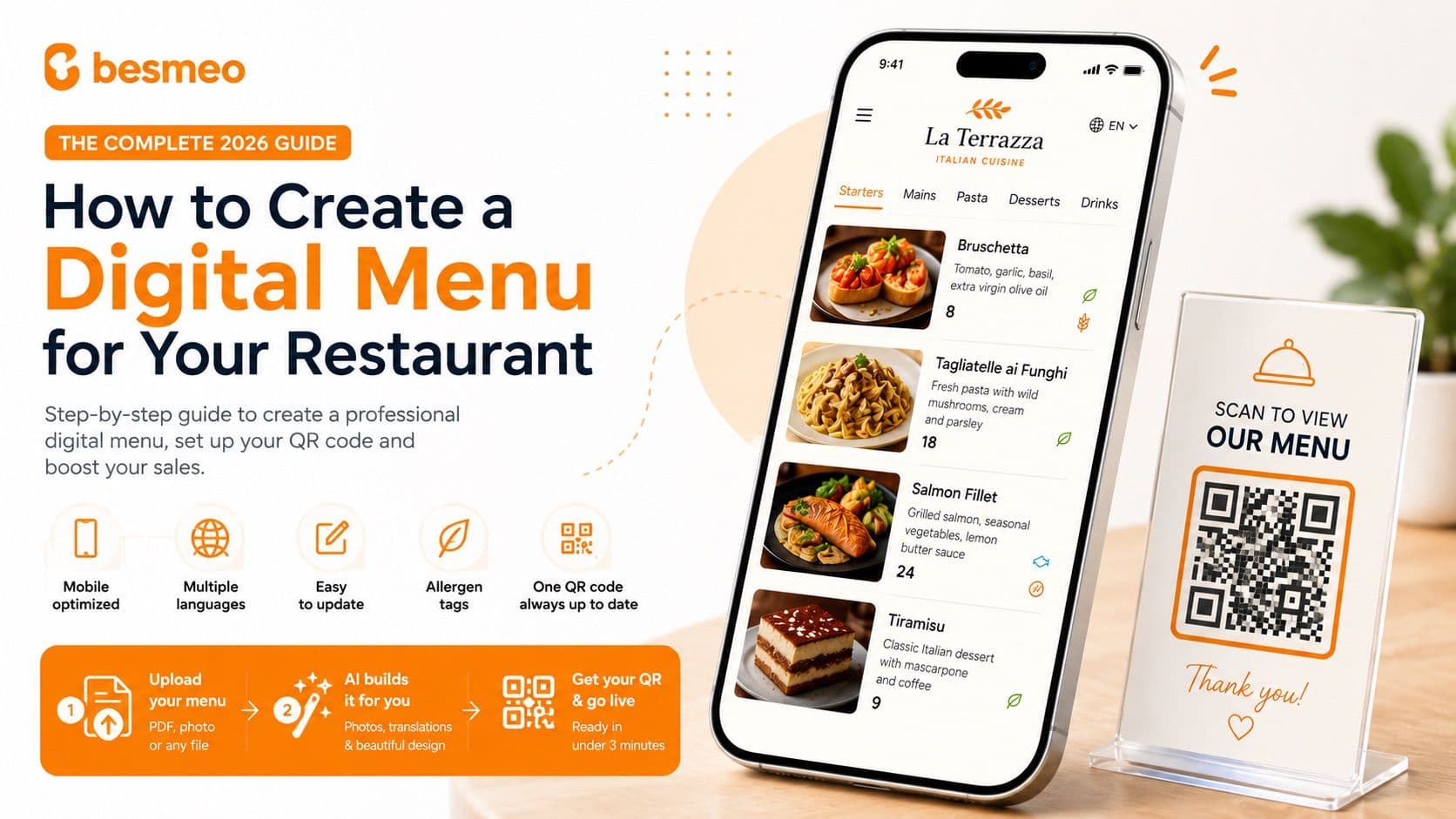
How to Create a Digital Menu for Your Restaurant: The Complete 2026 Guide
You've decided to ditch the laminated menus and go digital. Smart move. Customers expect it, tourists need it, and updating your prices shouldn't require calling a printer.
But the moment you start researching how to actually do it, you hit a wall of conflicting advice. Some sites tell you to make a PDF and slap a QR code on it. Others sell you a $200/month platform with features you'll never use. YouTube tutorials suggest you build a custom website from scratch. None of it tells you what actually matters.
This guide is the no-fluff version. By the end, you'll know exactly what a good digital menu looks like, what to avoid, and the three realistic paths to launching yours — including the fastest way to go from physical menu to QR code in under 3 minutes.
Step 1: Understand what a "digital menu" actually means
Before you choose a tool, you need to understand the difference between three things people lump together as "digital menus":
A PDF menu behind a QR code. You scan a QR code on the table and a PDF opens on your phone. This is what most restaurants have, and it's not actually a digital menu — it's a paper menu in digital wrapping. The PDF is impossible to read on a phone without zooming, you can't update prices without a redesign, and it provides a poor experience that customers tolerate but don't enjoy.
A web-based digital menu. A real digital menu is a mobile-optimized webpage built specifically for phones. Tappable categories, large readable text, photos that load instantly, prices clearly visible. Customers actually browse it instead of squinting through it. This is what you should be aiming for.
An ordering app. A full ordering system that lets customers order and pay from their phone. This is overkill for most independent restaurants, costs $100+ per month, and requires significant operational changes. If you're not ready to handle in-app payments and orders, skip this for now.
For 90% of restaurants, you want option 2: a real web-based digital menu. That's what this guide focuses on.
Step 2: Decide what your digital menu needs to do
Before choosing a tool, write down what your menu actually needs. The features below are the ones that genuinely matter. Skip anything that doesn't apply to your restaurant.
Mobile-first design. Non-negotiable. Over 80% of QR code scans come from smartphones. If your menu requires zooming or scrolling sideways, you've already lost.
Photos for each dish. Studies consistently show that menu items with photos sell roughly 6.5% more than those without. For tourist-heavy restaurants where customers don't recognize the dish names, photos can be the difference between a beer-and-chicken order and a $40 seafood platter.
Multiple languages. If you serve international customers in any meaningful percentage, this is essential. Even one alternative language (English in non-English-speaking areas, or Spanish/French in major US tourist cities) significantly increases average check size.
Easy editing. You should be able to change a price, add a special, or remove a sold-out dish from your phone in under 30 seconds. Without leaving the kitchen. Without calling support.
Allergen tags. Increasingly important for compliance and customer experience. Diners with dietary restrictions deserve to know what they can eat without flagging down a server.
Custom branding. Your logo, your colors, your photos. A digital menu that looks generic cheapens your restaurant. The menu is part of the brand experience.
A QR code that doesn't change. Critical detail most people miss. You want a permanent QR code that always shows the latest version of your menu. Print it once, update the menu inside without ever touching the QR code again.
Step 3: Choose your path
There are three realistic ways to create a digital menu. Each has trade-offs. Pick the one that matches your time, skills, and budget.
Path A: The DIY route (free, slow, painful)
You build it yourself with free tools. Common combinations: Canva for design + Google Drive for hosting + a free QR code generator. Or a no-code website builder like Carrd or Wix.
The reality: This will take you 8-15 hours of work, look amateur compared to a proper tool, and require you to manually update everything every time something changes. Every price change is a redesign. Every new dish is a layout adjustment. Every translation requires copy-pasting into Google Translate and back.
The DIY route makes sense if you have 1) plenty of time, 2) basic design skills, and 3) a very simple menu that rarely changes. For most restaurants, it's a false economy — you save $40/month and lose 10 hours of your time every quarter.
Path B: A traditional digital menu builder ($10–$50/month)
Tools like Menubly, MenuTiger, iMenuPro, and similar platforms let you build a menu by entering each dish manually. You type the name, paste the description, set the price, upload the photo, and repeat for every single item.
The reality: A typical 40-item menu takes 2–4 hours to set up the first time. The tool is fine once it's built, but the upfront work is substantial. If you don't already have professional photos of every dish, you'll either need to hire a photographer ($300–$800) or use stock images (which look obviously generic).
This path makes sense if you enjoy hands-on control over every detail and you already have your photos sorted. It's the standard option, and it works.
Path C: An automated tool ($49/month with everything done for you)
A newer category of tools uses AI to do all the work for you. You upload your existing menu in any format — PDF, photo, even a picture of your physical printed menu — and the tool extracts every dish, generates professional-looking AI photos for each one, translates everything to multiple languages automatically, and gives you a finished digital menu in under 3 minutes.
Besmeo is the leading example of this approach. You upload your menu PDF (or take a photo of your physical menu with your phone) and the entire process is automated. By the time you grab a coffee, your digital menu is live with photos for every dish, translations to 5 languages, and a permanent QR code ready to print.
The reality: This is the fastest path by a massive margin. What takes hours with Path B takes minutes here. The AI-generated photos are good enough that customers can't tell they're not real (and you can replace any photo you don't like). The trade-off is you give up some control over micro-design choices in exchange for speed.
This path makes sense for most restaurant owners — particularly those who don't have professional photos, who serve international customers, or who simply don't have time to manually build a menu.
Step 4: Build your menu (the actual steps)
Regardless of which path you chose, the steps are similar:
1. Gather your menu in one place. Whatever format you have it in — printed sheets, a PDF, a Word document, even a handwritten list — get it consolidated. If you're going the automated route, you can skip ahead. If you're doing it manually, you'll need every dish, description, and price in a list.
2. Take or generate photos. If you're hiring a photographer, plan a session covering your top 15-20 dishes (the ones with the highest margin and the ones customers ask about most). If you're using AI generation, the tool handles this automatically. If you're using stock photos, please don't — customers can spot generic stock food images instantly and it makes the whole menu look fake.
3. Organize by category. Group dishes logically: Appetizers, Mains, Desserts, Drinks. Within each category, place your highest-margin items first or last (the "Golden Triangle" — these positions get the most eye attention). Hide the lower-margin items in the middle.
4. Write descriptions that sell. "Grilled chicken — $24" tells the customer nothing. "Free-range chicken breast, herb-roasted with seasonal vegetables and lemon butter sauce — 24" makes them hungry. Studies show that descriptive menu language can increase sales by up to 27%. Two lines max per dish — anything longer and people stop reading.
5. Set your prices without dollar signs. When customers see "$28.00," they focus on the cost. When they see "28," the price fades into the background. Remove the currency symbol from your menu wherever possible.
6. Add allergen and dietary tags. Mark dishes as gluten-free, vegan, vegetarian, contains nuts, etc. This builds trust with customers who have dietary restrictions and reduces server workload.
7. Set up your translations. If you serve international customers, having at least English plus your local language is essential. The major tourist languages worth considering: English, Spanish, French, German, Italian, Portuguese. Automated tools handle this in seconds. Manual tools require you to enter every translation yourself.
Step 5: Generate and print your QR code
Once your menu is built, you need a QR code that links to it. Two important rules here:
Get a permanent QR code. A "static" QR code points to a specific URL forever. If you ever want to change anything about your menu — switch tools, restructure the URL, update the design — every QR code you've already printed becomes useless. A "dynamic" QR code points to a managed URL that you can update from a dashboard. Always go dynamic.
Don't make a QR code that opens a PDF. This is the most common mistake. A QR code that opens a PDF of your menu defeats the entire purpose. Make sure your QR code points to a proper mobile-optimized webpage.
For printing: laminated table tents work, but stickers on the corner of physical menus work even better. Some restaurants print the QR code on receipts as well, which captures customers who want to recommend the restaurant later. Make the QR code at least 2 cm × 2 cm so phones can scan it from a normal viewing distance.
Step 6: Test before going live
Before you print 50 table tents, test the entire customer journey:
- Scan the QR code with three different phones (iPhone, Android, an older device)
- Open the menu in different browsers (Safari, Chrome)
- Check the loading speed on a slow connection (Wi-Fi off, 4G only)
- Test the language switcher
- Tap on dishes to make sure descriptions are readable
- Verify prices are correct (a typo here is expensive)
If any step fails or feels slow, fix it before printing anything.
Step 7: Train your staff and update your processes
The technical part is done. Now make sure your operations actually use it.
Train your servers. They should know how to direct customers to scan the QR code, how to help customers who can't figure it out, and how to quickly look up an item if a customer asks about ingredients or allergens.
Set up a process for updates. Designate one person responsible for keeping the menu current. When you 86 a dish, mark it unavailable on the digital menu. When prices change, update them the same day. When seasonal items come and go, rotate them on the menu within 24 hours.
Track what's working. Most digital menu platforms show you analytics: which dishes get viewed most, how long customers spend on the menu, what languages customers actually use. This is gold for menu optimization. After 30 days, look at the data and ask: are my Stars (high-margin, high-popularity items) the most-viewed? Are there dishes nobody clicks on? Should the menu be reorganized?
The fastest realistic path
If you're reading this and feeling overwhelmed, here's the honest summary: the DIY route eats your time, the manual builder route takes hours of upfront work, and the automated route is the realistic answer for most restaurant owners.
Upload your menu. Get a finished digital menu with photos and translations. Print the QR code. Move on with running your restaurant.