Switching from PDF menu to digital menu
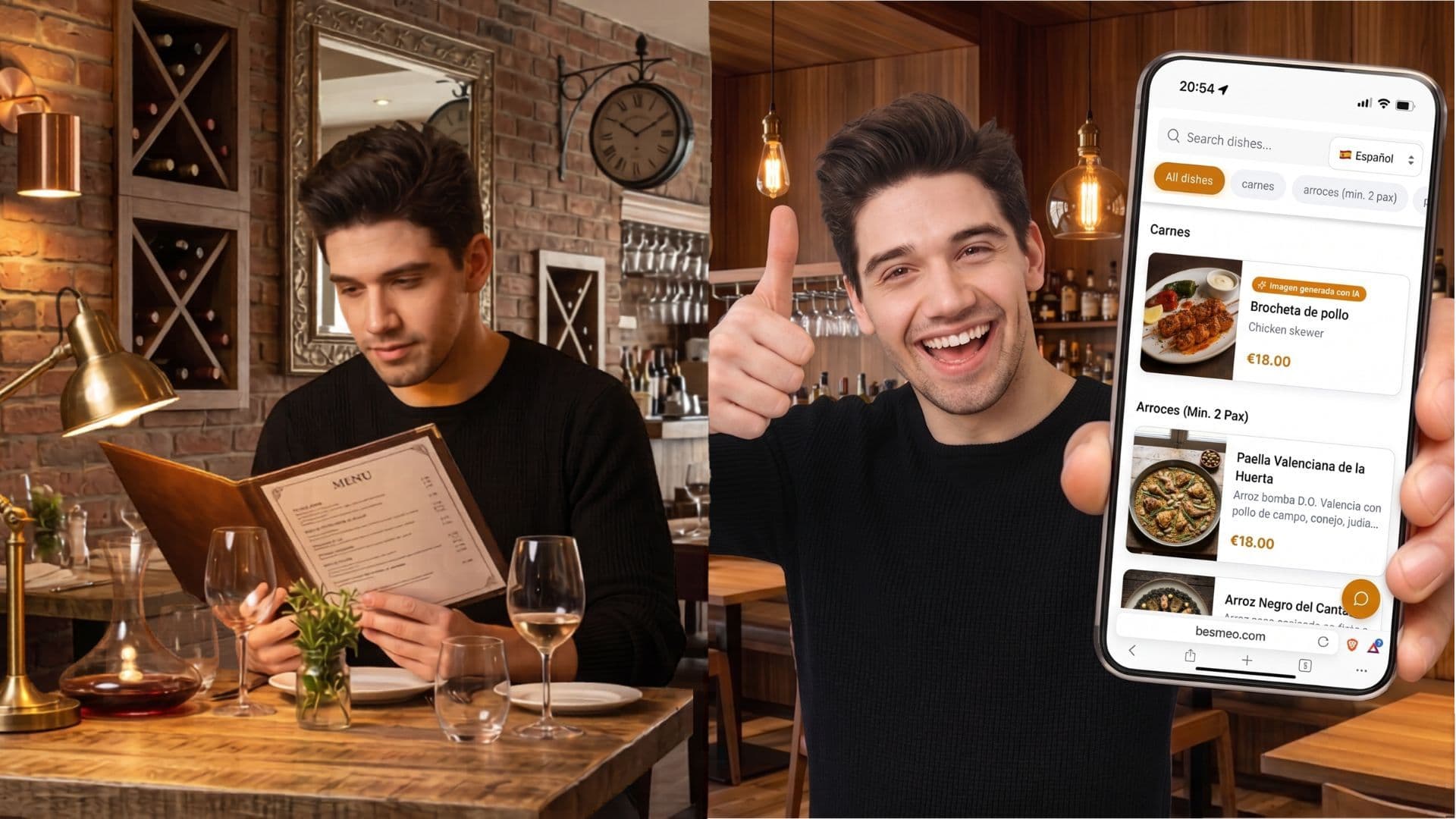
How to Switch from a PDF Menu to a Digital Menu (Step-by-Step Guide)
You've had a PDF menu behind a QR code for a couple of years now. It worked when you needed it to during the pandemic, and it sort of works now — customers scan it, the menu opens, and they pinch and zoom their way through ordering. Good enough.
Except it's not good enough, and you know it. You've watched tourists struggle to read it. You've watched customers default to the cheapest item they recognize because the description didn't translate well. You've paid for menu redesigns because changing a price meant editing a PDF and re-uploading it. You've heard about "real" digital menus but the idea of switching feels like more work than it's worth.
This guide walks you through the actual switching process — start to finish, with realistic timelines, costs, and the specific concerns most restaurant owners have. You'll come out of it knowing exactly what to do and how long it will take.
First: understand what you're switching to
Before talking about the how, let's be clear about the what.
A PDF behind a QR code is not a digital menu. It's a paper menu inside a digital wrapper. The PDF doesn't know what device you're using, doesn't know what language you speak, doesn't know which dishes are sold out, doesn't have any photos, and can't be updated without rebuilding the file and re-uploading it.
A real digital menu is something different. It's a mobile-optimized webpage built specifically for phones, with categories you can tap, photos that appear inline, language detection that adapts to the customer's device, allergen filters, and a dashboard that lets you change anything in seconds.
The switch isn't about replacing one PDF with another PDF. It's about moving from a static document to a dynamic platform. The user experience is so different that customers can usually feel the difference within the first 5 seconds of scanning the QR code.
The three concerns that hold most restaurants back
Before getting into the steps, let's address the three concerns I hear most often from restaurant owners considering this switch:
"It will take too much time." This is the most common objection. The reality: switching tools used to be a project. With modern platforms, it's a 3–10 minute setup process if you have your menu in any digital format. The reason it feels like it should take longer is because everyone remembers building their original menu, which probably took hours. Switching is different.
"I'll lose my current setup during the transition." Reasonable concern. The fix: keep your existing PDF live until the new menu is fully tested. The QR codes on your tables can stay pointed at the PDF for a few days while you build, review, and approve the new version. Only switch the QR codes (or update the underlying URL) once you're confident the new menu is correct. Zero downtime, zero risk.
"It will be too expensive or too technical." Most modern digital menu platforms charge $20–$50/month. That's typically less than what restaurants pay for menu printing in a single year. As for technical: if you can post on Instagram, you can manage a digital menu. The interfaces are deliberately simple because they're designed for restaurant owners, not for tech-savvy users.
With those out of the way, here's the actual process.
Step 1: Gather your current menu in any format
The first step is having your current menu accessible somewhere. This is the easy part because you already have it. PDF, Word document, photo of your physical menu, a printed copy you can scan, even a spreadsheet — any of these work as a starting point.
If your menu is only in printed form and you don't have a digital copy, take a clear photo of each page with your phone. That's enough. Modern platforms can extract dishes, prices, and descriptions from photos as easily as from PDFs.
This step takes 2–5 minutes if you already have a digital file. It takes 10–15 minutes if you need to take photos of a physical menu.
Step 2: Upload your menu to a digital menu platform
The bulk of the work happens automatically at this stage. You upload your existing menu file, and the platform's AI processes it.
In a modern platform like Besmeo, here's what happens behind the scenes once you upload:
- The system reads your PDF (or photo) and extracts every dish, including names, descriptions, and prices.
- It organizes the dishes into categories based on how your original menu was structured.
- It generates a professional-looking AI photo for every dish automatically.
- It translates the entire menu into 5 languages (English, Spanish, French, German, Italian, Portuguese) using gastronomy-aware translation.
- It outputs a finished, mobile-optimized digital menu with a permanent QR code.
This entire process takes about 3 minutes. By the time you've finished your coffee, your new menu is ready to review.
If you're evaluating other platforms, the process will look different. Most traditional menu builders require you to manually enter each dish, paste descriptions, upload your own photos, and configure translations yourself. That manual approach can take 2–4 hours for a 40-dish menu. It's still valid if you prefer hands-on control, but the time investment is significant.
Step 3: Review every dish carefully
This is the step most likely to introduce errors if you skip it. Whether the menu was built automatically or manually, you need to verify that every detail is correct before going live.
Walk through your menu like a customer would:
- Are all dishes present? Sometimes AI or manual entry misses an item, especially if your PDF had unusual formatting.
- Are prices correct? Double-check every number, including any seasonal or specialty pricing.
- Are descriptions accurate? AI-extracted descriptions are usually close but may need minor edits to match your voice.
- Are translations accurate? Pay special attention to dish names with cultural significance ("paella," "tortilla," "lasagne") that have specific local meanings.
- Are photos appropriate? AI photos are usually excellent but occasionally produce something off (a "ceviche" that looks like a salad, for example). Replace any photo that doesn't match the actual dish.
- Are allergens marked? Add gluten-free, vegan, vegetarian, and other dietary tags where relevant.
This review step takes 15–30 minutes for a typical menu. It's the most important step in the entire process — get it right here and you'll never have to fix issues later.
Step 4: Customize the visual identity
Most digital menu platforms let you upload your logo, choose colors, and add your restaurant's basic information (address, hours, contact details, social media). This is where you make the menu feel like your restaurant rather than a generic template.
Don't over-customize. The most common mistake here is restaurant owners spending hours fine-tuning colors and fonts when the default settings are already good. Use your logo, pick one or two colors that match your brand, and move on. The menu's job is to sell food, not to win a design award.
This step takes 5–10 minutes.
Step 5: Test on multiple devices
Before going live, scan the QR code (or open the menu URL) on at least three different devices:
- An iPhone (Safari)
- An Android phone (Chrome)
- An older phone if available
Check that:
- The menu loads quickly (under 3 seconds on a normal connection)
- Categories work when tapped
- Photos load without delay
- The language switcher works
- All prices are visible and correctly formatted
- The contact info and address are correct
If any device has issues, address them before printing QR codes. Most issues at this stage are minor (a font that doesn't render correctly, a category that's misnamed) and take seconds to fix.
This step takes 10–15 minutes.
Step 6: Print and place your new QR codes
Once you've reviewed and tested, generate your QR code from the platform and print it. A few practical tips:
Use a dynamic QR code. Modern platforms generate dynamic QR codes by default, which means the QR code itself never changes even if you change tools later. Confirm this before printing — printing static QR codes is a mistake you'll only make once.
Print at the right size. QR codes should be at least 2cm × 2cm to scan reliably from a normal viewing distance. Bigger is better when in doubt.
Print durably. Laminated table tents work, but adhesive QR stickers on the corner of physical menus or directly on tables work better. They're harder to lose and easier to scan than table tents that customers move around.
Place them visibly. The QR code should be the first thing a customer sees when they sit down. Center of the table, top of the menu, on a small standing card — wherever it's most likely to catch their attention.
This step takes 30–60 minutes depending on how many tables you have and what printing format you choose.
Step 7: Train your staff (briefly)
Your staff doesn't need extensive training, but they should know how to handle the most common situations:
- A customer can't find the QR code. Show them where it is.
- A customer's phone can't scan it. Have a small printed backup menu available for these customers (this is rare, but it happens).
- A customer asks about an ingredient or allergen. Show them how the menu's allergen filter works, so they can self-serve.
- A dish is sold out. Mark it unavailable in the dashboard immediately so no other table orders it.
A 15-minute team huddle covers all of this. Most servers pick it up immediately.
Step 8: Plan to use the dashboard
The biggest mistake restaurants make after switching is treating their new digital menu like a static replacement for their PDF. They build it, launch it, and never touch it again.
The whole point of having a digital menu is the dashboard. Use it.
- When a price changes, update it immediately. Don't wait.
- When you 86 an item mid-service, mark it unavailable so other tables don't order it.
- When you add a special, add it to the menu the same day.
- When you change a seasonal item, swap it in the menu instead of writing it on a chalkboard.
The dashboard takes 30 seconds to open and another 30 seconds to make most changes. Make using it a habit, not an event.
Total time and cost summary
For a typical 40-dish menu, here's what the full switch looks like:
- Gathering current menu: 5–15 minutes
- Upload and processing: 3 minutes (automated) or 2–4 hours (manual entry)
- Review and corrections: 15–30 minutes
- Visual customization: 5–10 minutes
- Testing: 10–15 minutes
- Printing and placing QR codes: 30–60 minutes
- Staff training: 15 minutes
Total active time: 1.5–3 hours with an automated platform, or 4–7 hours with a manual platform.
Cost: $20–$50/month for the platform, plus a one-time printing cost of $20–$100 depending on how many table tents or stickers you print. No design fees, no photography costs, no translation costs.
For most restaurants, this represents the single highest-leverage operational change available — and the one most owners postpone the longest.
What to do this week
If you've been considering this switch for a while, here's the realistic action plan:
Today: Locate your current menu file. Make sure you can access the PDF, photo, or document version of your current menu.
This week: Upload it to a digital menu platform and review the result. The free trials offered by most platforms (including 14 days at Besmeo) let you do the entire setup and see the finished menu without committing to anything.
Next week: Test the new menu with a few real customers before fully switching the QR codes on your tables. Get feedback, make adjustments, and only switch the live version when you're confident.
The whole transition can be completed in under two weeks of evenings, with the actual work taking less than three hours of your time. The longer you wait, the more you continue losing — in printing costs, in tourist revenue, in operational time spent on changes that should take seconds.
Upload your PDF menu and see your new digital menu in 3 minutes →